With the new release of Microsoft Windows 8, computer users from all over the world are now ready to download and upgrade to this long-waiting operating system. However, most people found it is much difficult to activate their Windows 8 because of various issues. One common reason for the failure of Windows 8 activation is that users are never prompted to enter the key and the option to change the key was missing. In this article, we will share two easy ways to activate Windows 8 by just changing product key.
Method 1 Using Command Prompt
Step 1. Open Command Prompt by any of the following ways.
- Right click the left hand corner of your Windows 8 screen and click “Command Prompt (Admin), just as shown in picture below:
- Go to the Start screen, enter “cmd” and right click. And then select “Run as Administrator” to launch the command prompt as Administrator.
Step 2. Enter “slmgr.vbs -ipk <then type your product key>” in the “Administrator: Command Prompt” window and press the Enter button, and then continue to enter “slmgr.vbs –ato”
This method can be used on any version of Windows 8.
Method 2 Using SLUI 3 Command
Step 1. After launching the Commpand Prompt, enter the “SLUI 3” and press the “Enter” button, you will open the Windows Activation box.
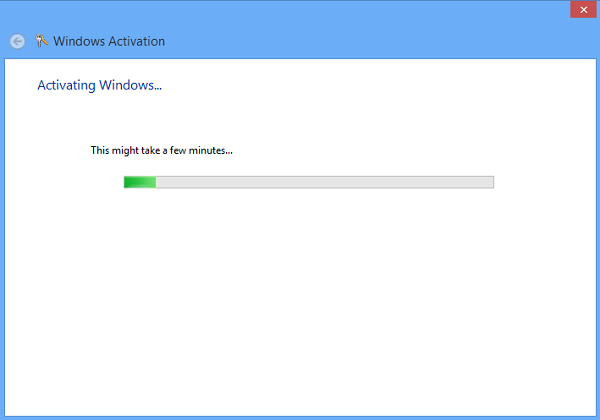
Step 2. Enter your product key in the Windows Activation box and click the “Activate” button.
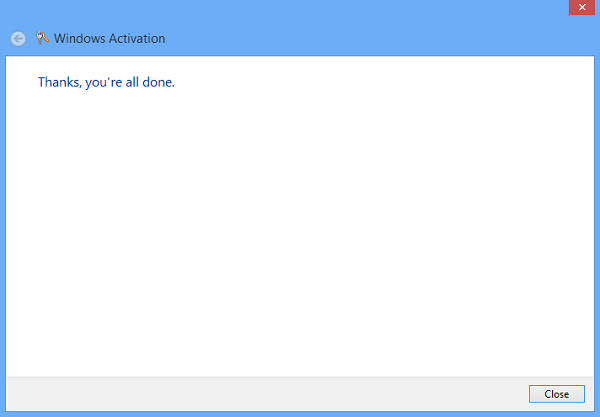
Step 3. Complete the Windows 8 activation in seconds.