Current Position : Acebyte > Acebyte Utilities >Acebyte Utilities Help
Acebyte Utilities help
File Manager: Manage your files or folders on PC easily via smart tools: Disk Cleaner, Registry Cleaner, File Shredder, Top File Finder, Cloned File Finder and Empty Folder Finder,
Step 1: After launching Acebyte Utilities, click to enter Utilities box.
Step 2: Under Utilities box, click File to show File Manager items.
Disk Cleaner: Scan to find out the specified types of junk files in the given folders and delete the selected junk files to free up your hard disk.
Step 1. Select the hard disk you want to scan to turn to box as below:
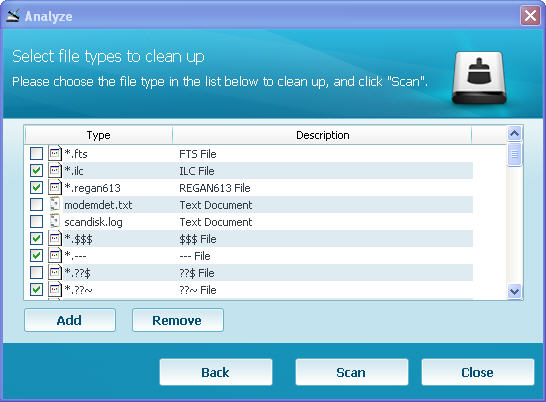
Step 2. Select the file types you want to scan.
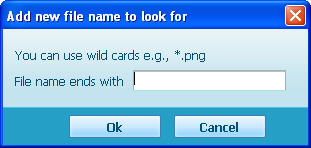
- : click to add the file type you want to scan in below box:
 : click to remove your selected fie type from the file type list.
Step 3. Click  to get started on disk cleaning scan.
Registry Cleaner: Scan your Windows registry and fix registry errors causing system slowdown to optimize your PC performance
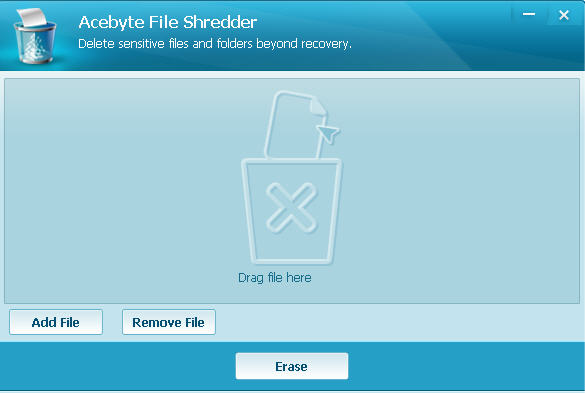
File Shredder: Easily delete unnecessary files or folders beyond recovery permanently.
Top File Finder: Find out large files or recently modified files and clean.
Cloned File Finder: Find out all duplicate files according to various terms to free up your disk space step by step .
Step 1. Select areas on your computer to scan duplicate files.
Step 2. Select file types.
Step 3. Click Next button to get started scanning.
Step 4. Please allow few seconds to show the scan results.
Empty Folder Finder: Find empty folders in your system and let you delete them easily.
Acebyte Utilities
Register Cleaner
Useful Links
Hot Tags
Acebyte | Affiliate & Partners | Links | Sitemap | Privacy | Terms of Use | Contact us
Copyright © Acebyte. All rights reserved
Copyright © Acebyte. All rights reserved